Free Sims 4 CC Emergency Fixer Tool — Find Out Why Your CC Isn’t Working
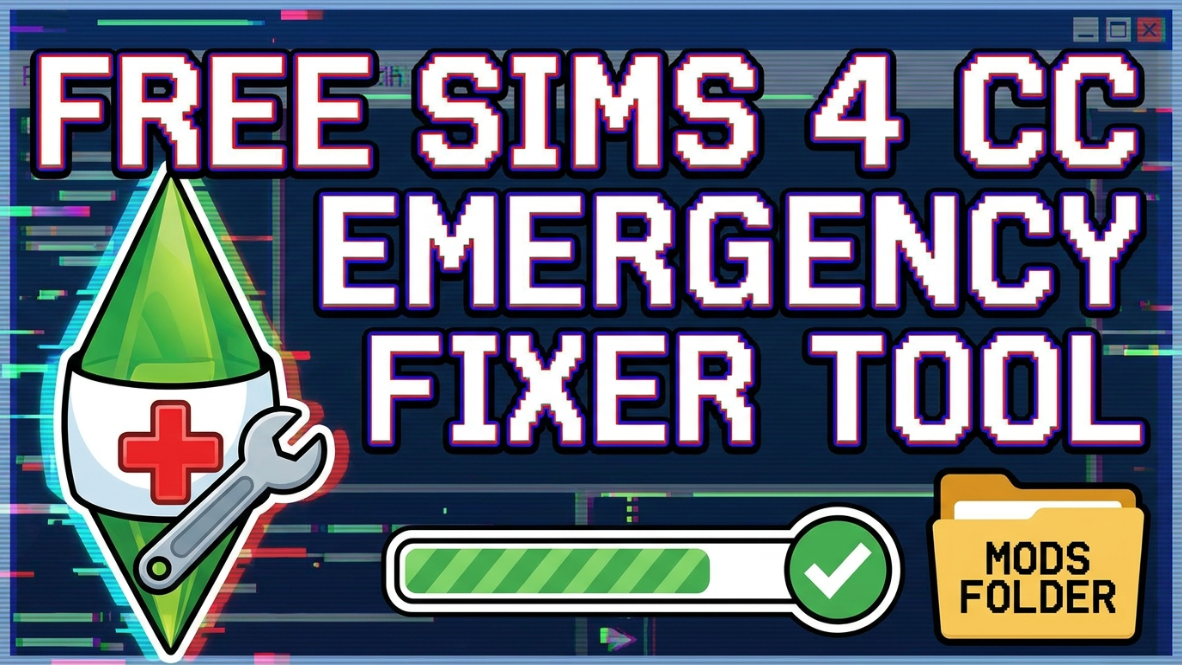
If your Sims 4 CC is not showing up, your mods stopped working, or your Mods folder feels messy after an update, this free Sims 4 CC Emergency Fixer Tool can help you get a simple checklist fast.
Why I Made This Sims 4 CC Fixer Tool
If you play The Sims 4 with custom content, you already know how stressful it can be when your CC suddenly stops showing up. One day your hair, clothes, lashes, furniture, and script mods are working perfectly, and the next day everything feels broken.
Sometimes it happens after a Sims 4 update. Sometimes mods get disabled in the game settings. Sometimes files are still inside a .zip folder. Sometimes script mods are buried too deep. And sometimes one new piece of CC causes the whole folder to feel chaotic.
That is why I made the Sims 4 CC Emergency Fixer Tool. It is a simple free tool that asks you a few questions and gives you a custom checklist based on your answers.
Open the Free Sims 4 CC Emergency Fixer Tool
Answer a few quick questions and get a simple checklist to help fix missing CC, broken mods, zipped files, script mod issues, and Mods folder problems.
What the Tool Helps You Check
The Sims 4 CC Emergency Fixer Tool helps you look at the most common reasons custom content and mods stop working.
- Custom content is disabled in game settings
- Script mods are not allowed
- Files are still inside a .zip or .rar folder
- CC is in the wrong folder
- Script mods are too many folders deep
- Old or broken CC was recently added
- Your Mods folder needs better organization
- Your game cache needs to be cleared
Instead of guessing, the tool walks you through the basics and gives you a clean checklist you can follow.
Who This Tool Is For
This tool is perfect for Sims 4 players who download a lot of custom content and want an easier way to troubleshoot their game.
You may want to use it if:
- Your Sims 4 CC is not showing up
- Your mods stopped working after an update
- Your script mods are not loading
- Your Mods folder is messy or hard to manage
- You are new to Sims 4 custom content
- You are not sure where your CC files should go
- You want a simple checklist instead of a confusing guide
How the Sims 4 CC Emergency Fixer Tool Works
The tool asks beginner-friendly questions about your CC and Mods folder. Based on your answers, it gives you a personalized checklist.
For example, it may tell you to:
- Enable Custom Content and Mods in your game settings
- Enable Script Mods Allowed
- Restart The Sims 4
- Move files into the correct Mods folder
- Unzip compressed downloads
- Keep script mods only one folder deep
- Test new CC in small batches
- Clear your localthumbcache.package file
- Back up your Mods folder before updates
There is also a copy button so you can copy your checklist and save it for later.
Where Should Sims 4 CC Go?
Most Sims 4 custom content should go inside your Mods folder. The usual folder path is:
Documents → Electronic Arts → The Sims 4 → Mods
Regular .package files are usually used for hair, clothes, makeup, furniture, accessories, and other custom content.
Script mods usually use .ts4script files and should be kept simple. Do not bury script mods inside too many folders because the game may not read them correctly.
Common Reasons Sims 4 CC Stops Working
If your custom content suddenly disappears, it does not always mean the CC is gone forever. Many issues are caused by simple settings or folder mistakes.
1. Mods Were Disabled After an Update
After updates, The Sims 4 may disable mods and custom content. Go to Game Options → Other and make sure custom content and script mods are enabled again.
2. Files Are Still Zipped
The game cannot use CC that is still inside a compressed file. If your download is a .zip or .rar file, extract it first. Then move the actual .package or .ts4script files into your Mods folder.
3. Script Mods Are Too Deep
Script mods should not be placed inside too many folders. Keep them in the main Mods folder or one simple folder inside Mods.
4. One New File Is Broken
If you recently added new CC and your game started acting weird, move the new files out and test your game. You can add them back in small batches to find the problem.
5. Your Mods Folder Is Too Messy
A messy Mods folder makes everything harder. It becomes difficult to find broken files, update script mods, and remove old CC. That is why having a clean folder system matters.
Want a Better Way to Organize Your Mods Folder?
I also made a Sims 4 CC Organizer Tool on Patreon to help players sort, clean, and manage their custom content more easily.
Use the Free Tool First
If your CC is not working right now, start with the free fixer tool before deleting anything.
The checklist can help you slow down, check the basics, and avoid removing your whole Mods folder by mistake.
Once you know what is wrong, you can fix your game more calmly.
Open the Sims 4 CC Emergency Fixer Tool
Final Thoughts
Sims 4 custom content is one of the best ways to make your game feel personal,
stylish, and fun. But when CC stops working, it can feel overwhelming fast.
The Sims 4 CC Emergency Fixer Tool was made to make troubleshooting easier.
It gives you a simple step-by-step checklist so you can check your game settings,
files, folders, script mods, cache, and organization without feeling lost.
Use the free tool whenever your CC stops showing up, especially after Sims 4 updates or when your Mods folder gets too messy.
You May Also Like
- Sims 4 CC Not Showing Up After Update?
- How to Install Sims 4 CC and Mods in 2026
- How to Organize Your Sims 4 Mods Folder Without Stress
- Best Sims 4 CC Finds You Need in Your Game
- Best Sims 4 Mods for Better Gameplay
This website is not endorsed by or affiliated with EA or its licensors. All Sims-related names and assets belong to their respective owners.