
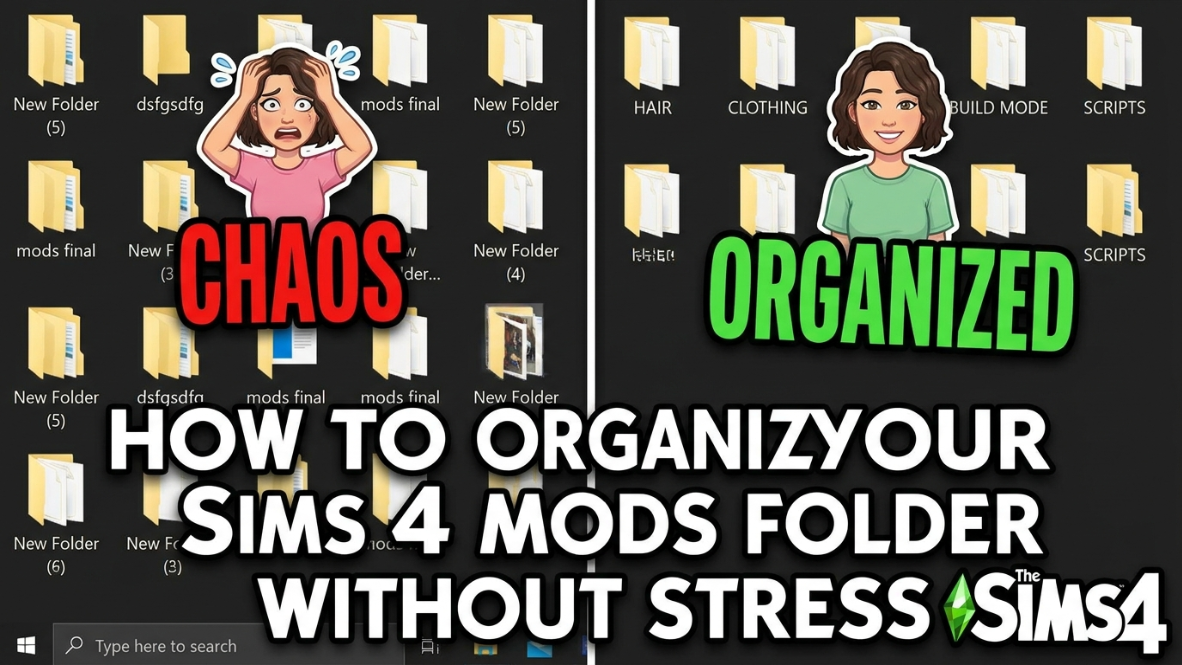
How to Organize Your Sims 4 Mods Folder Without Stress + My CC Organizer Tool
If your Sims 4 Mods folder is messy, overloaded, or full of random CC files, this beginner-friendly guide will help you organize everything in a simple way. I also made a Sims 4 CC Organizer Tool on Patreon for players who want extra help keeping their custom content neat and easier to manage.
Why You Should Organize Your Sims 4 Mods Folder
If you download a lot of Sims 4 custom content, your Mods folder can get messy really fast. One day you download a cute hair, then a clothing set, then lashes, furniture, poses, script mods, and suddenly your folder has hundreds or even thousands of files.
A clean Mods folder makes it easier to find broken CC, update script mods, remove old files, and keep your game running smoother. You do not need a complicated system. You just need a simple folder setup that is easy to understand.
Where Is the Sims 4 Mods Folder?
Your Sims 4 Mods folder is usually located here:
Documents → Electronic Arts → The Sims 4 → Mods
This is where your custom content and mods should go. If you are new to Sims 4 CC, make sure you are placing your files in the correct folder before organizing anything.
Simple Sims 4 Mods Folder Setup
The easiest way to organize your Mods folder is by category. You do not need hundreds of tiny folders. Keep it simple so you can find things later.
Here is a clean folder setup you can use:
- Hair
- Clothes
- Shoes
- Makeup
- Accessories
- Skin Details
- Kids CC
- Toddler CC
- Build Buy
- Furniture
- Poses
- Script Mods
- Needs Testing
- Old CC
This setup keeps your custom content easy to browse without making your folder too confusing.
Want an Easier Way to Organize Your Sims 4 Mods Folder?
If your Mods folder is full of random hair, clothes, lashes, furniture, script mods, and old CC you forgot about, I made a tool to help make the process easier.
My Sims 4 CC Organizer Tool is available on my Patreon and was made for players who want a cleaner, less stressful way to sort their custom content.
Use it to help plan your folders, clean up your CC categories, and keep your Mods folder easier to manage before and after Sims 4 updates.
Get the Sims 4 CC Organizer Tool on Patreon
Perfect for CC collectors, folder hoarders, and anyone tired of messy Mods folders.
Keep Script Mods Separate
Script mods should have their own folder so you can update them faster after Sims 4 patches. These are usually gameplay mods or tools that change how the game works.
Examples of script mods players often keep separate include:
- MC Command Center
- UI Cheats Extension
- XML Injector
- Wicked Whims
- Basemental Mods
Script mods should usually not be buried too deep inside multiple folders. Keeping them in one clear folder makes them easier to update and remove when needed.
Make a “Needs Testing” Folder
One of the best things you can do is create a folder called Needs Testing. Every time you download new CC, place it there first instead of mixing it into your full Mods folder right away.
This helps you test new files before they become part of your main collection. If something breaks your game, you will know the problem is probably inside your newest downloads.
Make an “Old CC” Folder
If you are not ready to delete certain files, create a folder called Old CC. This is helpful for items you do not use often but do not want to lose yet.
Later, you can review that folder and decide what to keep, delete, or replace with better custom content.
Do Not Keep Zip Files in Your Mods Folder
One common mistake is leaving .zip or .rar files inside the Mods folder. The game will not use those compressed files as regular CC.
Always unzip your downloads first. Then move the actual .package or .ts4script files into your Mods folder.
Back Up Your Mods Folder
If you have a big Sims 4 CC collection, always make a backup. You can copy your Mods folder to an external drive, USB drive, or cloud storage before major updates.
This protects your favorite CC if something goes wrong with your game, computer, or update.
Easy Sims 4 Mods Folder Cleaning Routine
You do not have to clean your Mods folder every day. A simple routine can help you stay organized without feeling overwhelmed.
- Check new CC before adding it to your main folders.
- Delete items you never use.
- Update script mods after game patches.
- Remove duplicates when you find them.
- Back up your folder before big updates.
- Keep a small list of your must-have mods.
Best Folder Names for Sims 4 CC
If you want your Mods folder to feel extra organized, use clear names that are easy to understand. Avoid random names like “new stuff” or “misc” because those folders become messy fast.
Better folder names include:
- CAS Hair
- CAS Clothing
- CAS Shoes
- CAS Accessories
- CAS Makeup
- Build Buy Furniture
- Kids and Toddlers
- Gameplay Mods
- Script Mods
- Testing New CC
What to Do If Your CC Stops Working
If your custom content stops working after organizing your folder, do not panic. Start by checking if custom content is still enabled in your game settings.
You can also test your Mods folder in small batches. Move some files out, open the game, and see if the problem goes away. This can help you find the broken file without deleting everything.
If your CC is not showing up at all, read this guide next: Sims 4 CC Not Showing Up After Update?
Final Thoughts
Organizing your Sims 4 Mods folder does not have to be stressful. Start with simple categories, keep script mods separate, test new downloads before mixing them in, and back up your favorite files.
If you want a more guided way to clean up your folder system, you can check out my Sims 4 CC Organizer Tool on Patreon. It was made to help Sims players keep their CC easier to sort, track, and manage without feeling overwhelmed.
A clean Mods folder makes your game easier to manage, especially if you love downloading Sims 4 CC. Once your folder is organized, finding broken files, updating mods, and enjoying your custom content becomes so much easier.
Get the Sims 4 CC Organizer Tool
Ready to make your Mods folder feel less chaotic? My CC Organizer Tool is available on Patreon and was created to help Sims 4 players sort, plan, and manage their custom content more easily.
You May Also Like
- Sims 4 CC Not Showing Up After Update?
- How to Install Sims 4 CC and Mods in 2026
- Best Sims 4 CC Finds You Need in Your Game
- Sims 4 Kids CC Folder Download
- Best Sims 4 Mods for Better Gameplay
This website is not endorsed by or affiliated with EA or its licensors. All Sims-related names and assets belong to their respective owners.