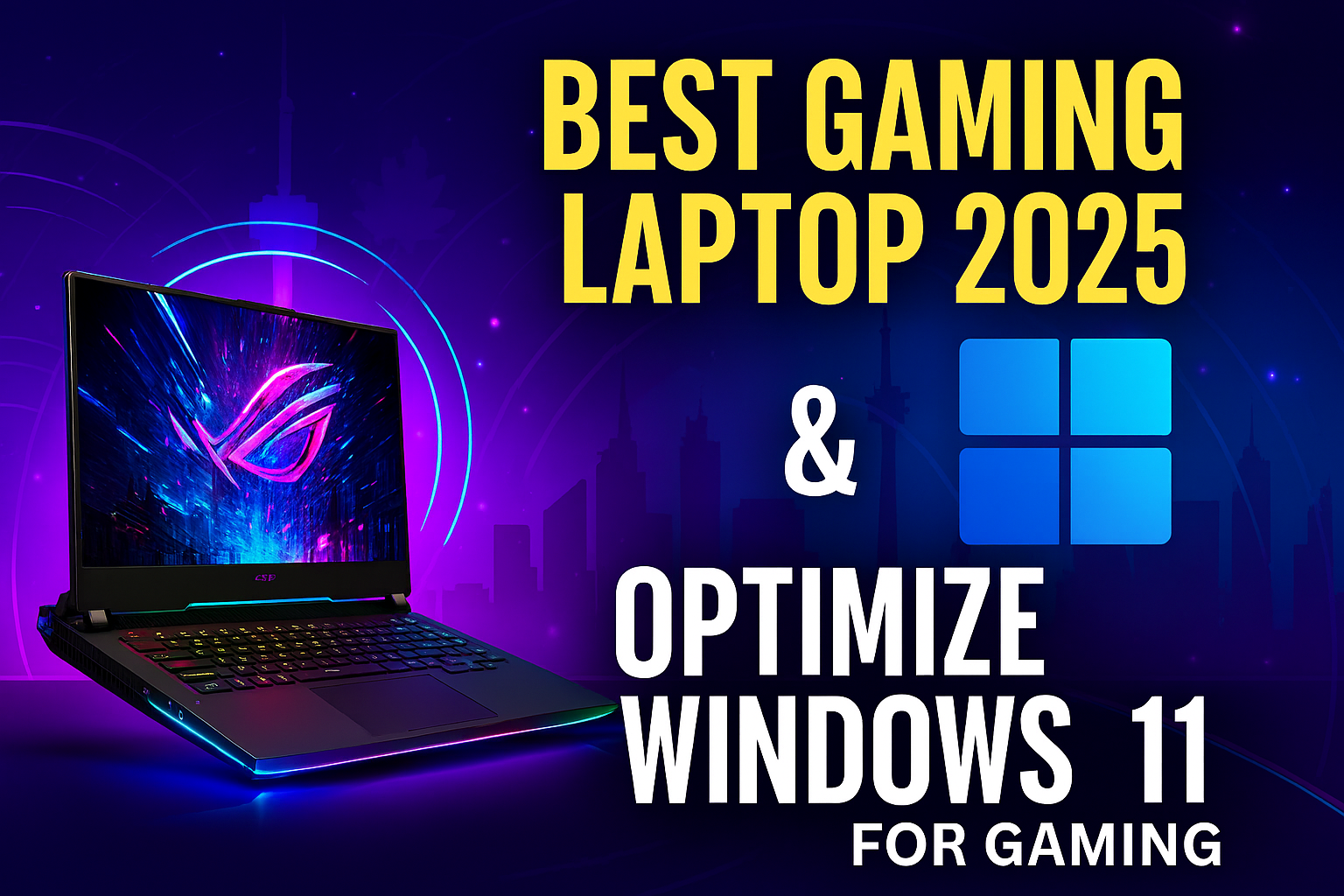
If you’re upgrading your setup or switching to a gaming laptop in 2025, you’re in for a treat. This year’s hardware leaps forward with desktop-grade performance packed into portable machines, and the ASUS ROG Strix Scar 18 leads the charge. With an Intel Core i9-14900HX and NVIDIA RTX 4090 Laptop GPU, it’s built for serious gamers who demand ultra settings and high refresh rates. But even the best laptop needs a tuned operating system to deliver consistent performance. That’s where Windows 11 optimization comes in.
Windows 11 offers built-in gaming features like Game Mode and DirectStorage, but out-of-the-box settings aren’t always ideal. By adjusting power plans, disabling background apps, and updating drivers manually, you can unlock smoother gameplay and faster load times. This guide walks you through essential tweaks—from enabling high-performance mode to cleaning up bloatware—and optional boosts like disabling visual effects and using DirectStorage-compatible games.
Whether you’re a competitive FPS player or a casual RPG explorer, optimizing your laptop and OS ensures you get the most out of your investment. We also highlight other top contenders like the Alienware m18 R2, Lenovo Legion 9i, and MSI Titan GT77 HX, each offering unique strengths for different gaming styles. Ready to dominate your next match? Let’s dive into the specs, settings, and strategies that make 2025 the best year yet for mobile gaming.
🔥 Best Gaming Laptop of 2025 & How to Optimize Windows 11 for Peak Performance
🎮 Best Gaming Laptop of 2025: Top Pick & Why It Wins
🏆 ASUS ROG Strix Scar 18 (2025 Edition)
- Intel Core i9-14900HX + NVIDIA RTX 4090 Laptop GPU
- 18-inch QHD+ Mini-LED display (240Hz refresh rate)
- AI-enhanced cooling and dynamic overclocking
- Customizable RGB keyboard and per-key macros
- PCIe Gen 5 SSD for lightning-fast load times
Other Top Contenders
| Laptop | Key Features |
|---|---|
| Alienware m18 R2 | Dual SSD bays, premium build, Cryo-Tech cooling |
| Lenovo Legion 9i | Water-cooled RTX 4080, carbon fiber chassis |
| MSI Titan GT77 HX | Mechanical keyboard, 4K display, desktop-grade specs |
⚙️ How to Optimize Windows 11 for Gaming
✅ Essential Tweaks
- Enable Game Mode: Settings > Gaming > Game Mode
- Update GPU Drivers: Use NVIDIA or AMD’s official site
- Disable Core Isolation: Windows Security > Device Security
- Turn Off Background Apps: Settings > Apps > Startup
- Adjust Power Settings: Control Panel > Power Options > High Performance
🧼 Optional Boosts
- Disable Visual Effects: System > Advanced > Performance Settings
- Clean up bloatware: Use Revo Uninstaller or Debloater scripts
- Use DirectStorage-compatible games for faster load times
🧠 Pro Tip: Sync with Xbox Game Bar
Use Windows + G to launch the Game Bar. Monitor FPS, record gameplay, and manage audio—all without leaving your game.