How to Organize Your Sims 4 Mods Folder (Reduce Lag & Crashes)
The Sims 4 runs beautifully with custom content… until your Mods folder becomes chaos. If your game takes forever to load, freezes in CAS, or randomly crashes, your Mods folder is usually the reason.
Why Organization Matters
Faceless UGC Brands: What It Means
The Sims 4 reads every file inside your Mods folder when launching. A messy folder forces the game to search thousands of files individually which slows loading dramatically.
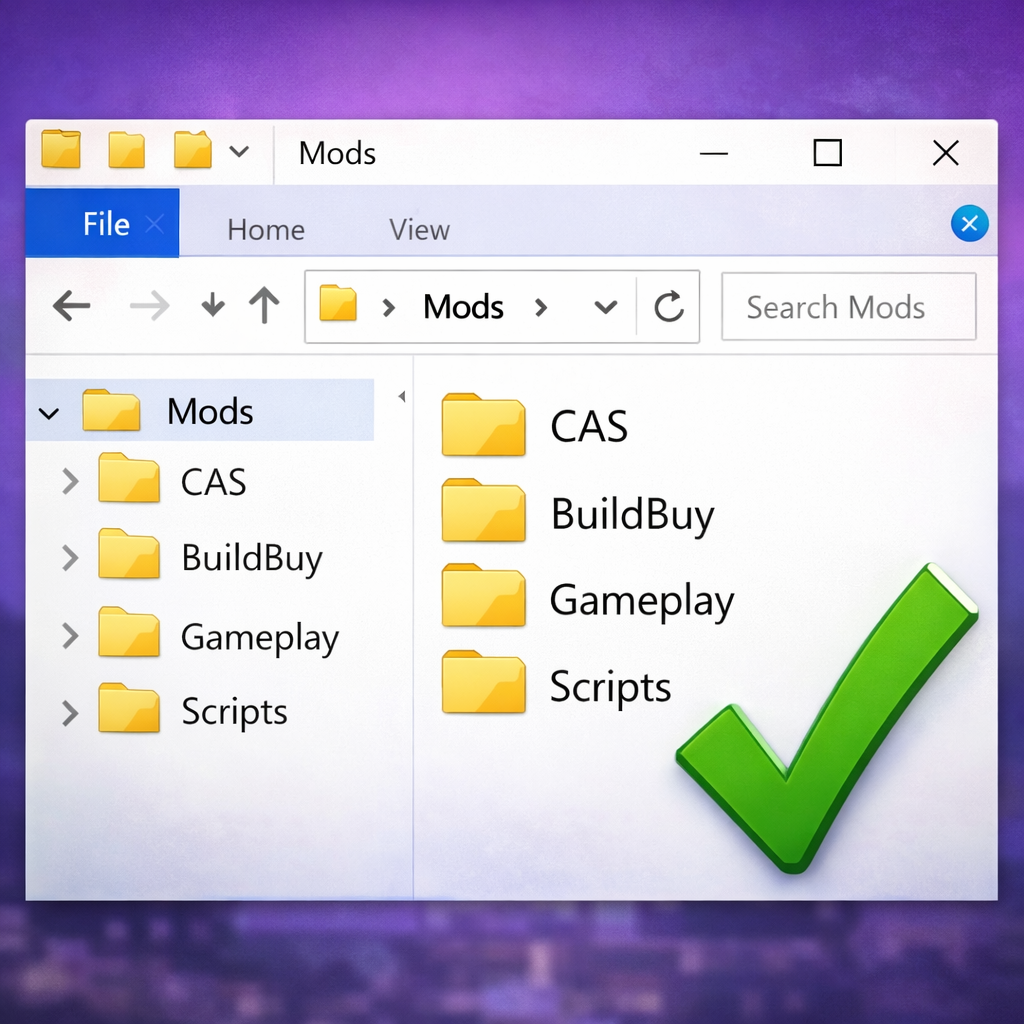
The Correct Folder Structure
- Mods → CAS → Hair
- Mods → CAS → Clothing
- Mods → BuildBuy → Furniture
- Mods → BuildBuy → Decor
- Mods → Gameplay Mods
Script mods should NEVER be placed deeper than one folder. Example:
Correct: Mods → Gameplay Mods → modname.ts4script
Wrong: Mods → Gameplay → Realism → Mods → Files → modname.ts4script
Delete Cache Files
Every time you add or remove CC, delete:
- localthumbcache.package
This alone fixes many broken CAS thumbnails.
Bonus Tip
Remove duplicate files. Having the same CC twice doubles loading time and can break textures.
Once organized, you will notice faster loading screens, smoother gameplay, and less freezing in Create-a-Sim.