
step-by-step guide on how to use MC Command Center (MCCC) in The Sims 4
Step 1: Install MCCC 💻
- Go to Deaderpool’s website.
- Download the latest version that matches your game update.
- Unzip the file — you’ll see several .package and .ts4script files.
- Move all files into your Mods folder: Documents > Electronic Arts > The Sims 4 > Mods
- Enable Script Mods in-game: Game Options > Other > Enable Custom Content and Script Mods ✔️
- Restart your game.
Step 2: Access MC Command Center ⚙️
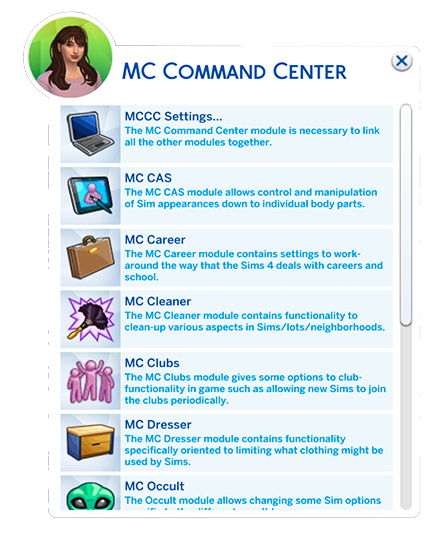
- Click any computer 🖥️ in your Sim’s house → Select MC Command Center
- Or click any Sim → MC Command Center for Sim-specific settings
Step 3: Understand the Modules 📋
- 🧩 MC Settings – Base module linking everything
- 💅 MC CAS – Edit body parts, appearance, or randomize Sims
- 💼 MC Career – Adjust jobs, school performance, and auto-promotions
- 🧹 MC Cleaner – Auto-delete culling relationships, empty households, or old Sims
- 🧑🤝🧑 MC Clubs – Manage club rules or auto-invite Sims
- 👕 MC Dresser – Control clothing categories and prevent weird outfit combos
- 🧛 MC Occult – Manage occult Sims like vampires, spellcasters, or aliens
Step 4: Popular Uses 🧠
- Set population control (limit pregnancies, homeless Sims, etc.)
- Turn on auto-aging or story progression
- Adjust relationship decay
- Clean up dead Sims, ghosts, or relationships
- Set autonomous behavior (marriages, pregnancies)
Pro Tip ⚡
Save your settings: MCCC > MCCC Settings > Auto-Save to keep your configuration.
📄 View the full guide: MC Command Center Sims 4 Guide (PDF)