
Cozy Sims 4 Mods + CC Finds (Safe Downloads): Functional Bible, Plumjob, Home Bizz Babe + More
Cozy Sims 4 Mods + CC Finds (Safe Downloads) | GamingWithPrincess
Ultimate Sims 4 CC Finds Folder
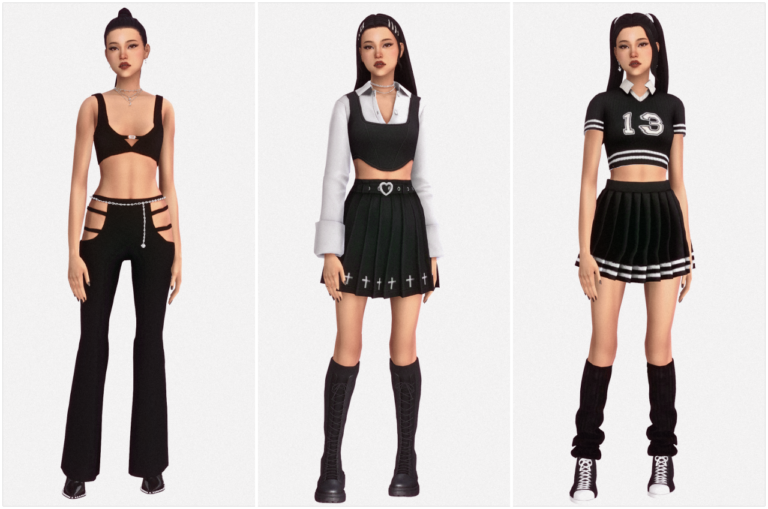
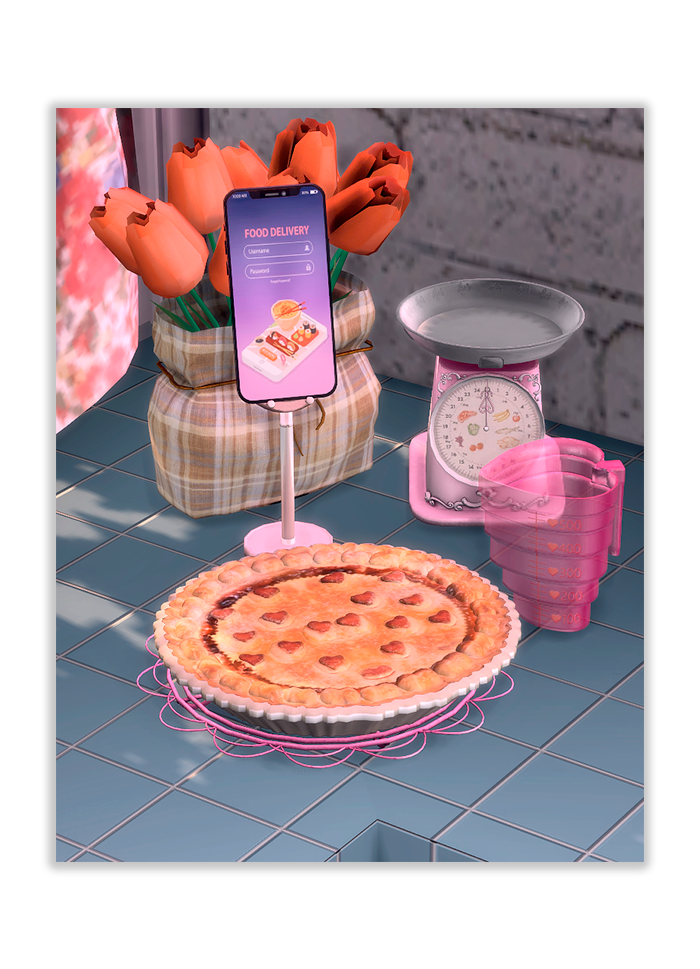
Looking for cozy, gameplay-friendly Sims 4 downloads that feel fresh and fun? This roundup includes a mix of functional mods, icon overrides, and aesthetic CC collections—perfect for upgrading your game without the clutter. I’m linking to the original creator pages so you can grab the latest updates safely, plus a few extra cozy finds at the bottom.
Functional Bible Mod (Updated) | Nimalu Sims

Plastic ~ The Mod | SeSeSimmi
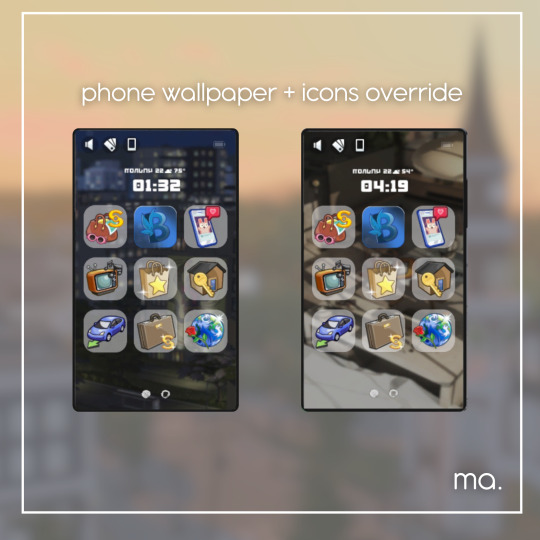
[ERosetta]CC Wrench (Icon Replacement/Override)
beauty and blush ; mod | ellesimsworld
Download: PLUMJOB: a career overhaul | ellesimsworld

How to Install These Sims 4 Mods + CC (Quick & Safe)
To keep your game running smoothly, download each mod/CC from the creator link above and place the files into your Mods folder (Documents > Electronic Arts > The Sims 4 > Mods). If a download comes as a .zip or .rar, extract it first (you should see .package and/or .ts4script files). Script mods must be no more than one folder deep to work properly—so avoid burying them in too many subfolders.
For icon overrides (like the CC Wrench replacement), keep only one override per category if you’re testing multiple UI mods, because overrides can conflict. For bigger gameplay mods (like career overhauls), read the creator’s post notes for required packs or compatibility. After installing, open The Sims 4, go to Game Options > Other, and enable Custom Content and Mods and Script Mods Allowed. Restart your game.
cozy sims 4 mods
Sims 4 Realistic Gameplay Mods
If anything feels “off” after adding new downloads, do a quick test: remove half of your new files, launch the game, then add them back in small batches until you find the one causing issues. This keeps your setup cozy and stress-free—especially when you’re building a curated, safe Mods folder you can reuse forever.